

How to Setup a Mesh Wi-Fi System for Whole Home Coverage
Reliable internet access is no longer a luxury. With streaming, online gaming, smart devices, and remote work, every corner of your home needs strong connectivity. Traditional routers often leave dead zones, causing frustration. This is where mesh Wi-Fi comes in. In this guide, you’ll learn exactly how to setup mesh Wi-Fi system for complete home coverage.
What is a Mesh Wi-Fi System?
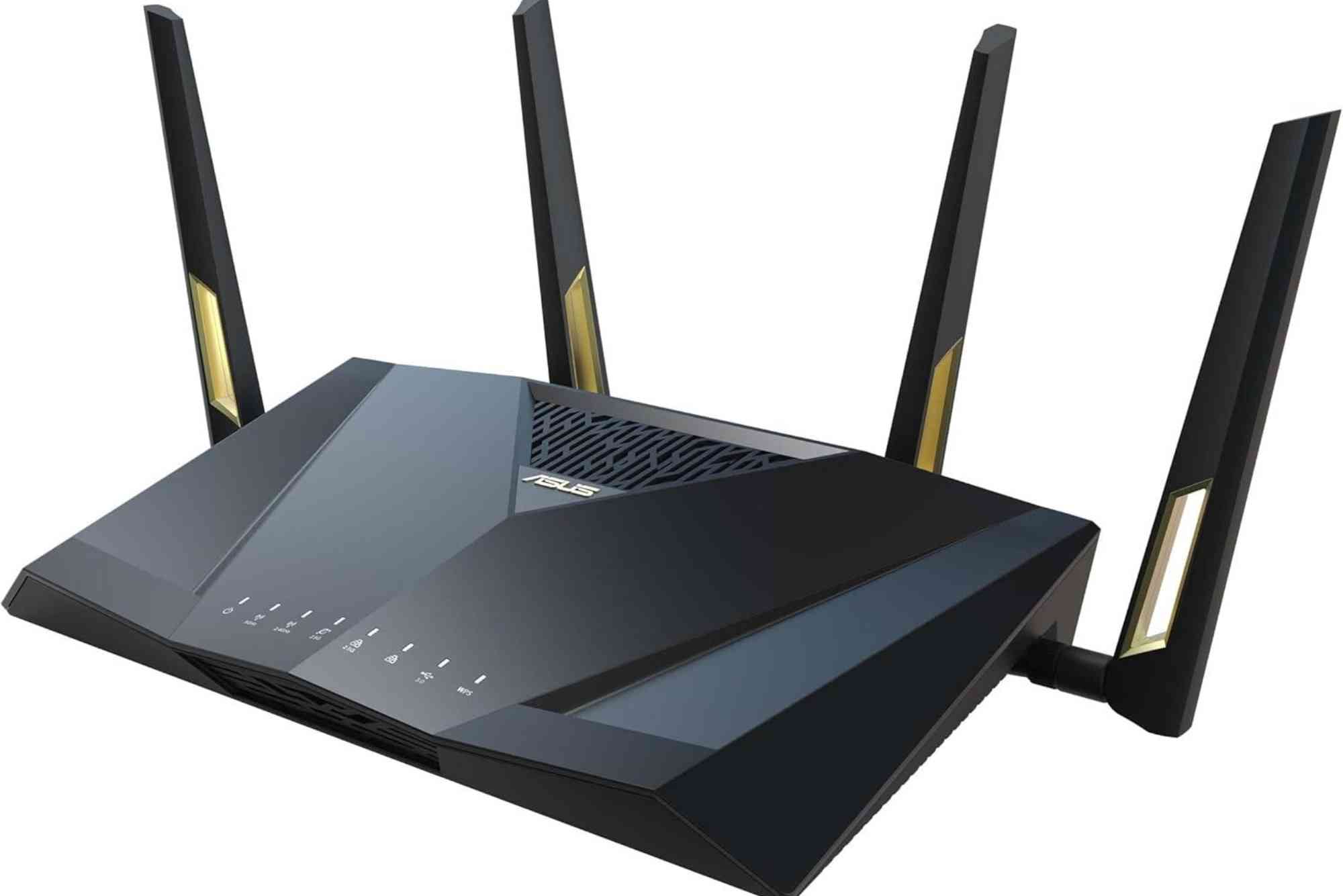
A mesh Wi-Fi system replaces a single router with multiple devices called nodes. These nodes work together to blanket your home in Wi-Fi, ensuring there are no weak spots. Unlike range extenders, mesh networks are seamless, so you move around without losing connection.
Why You Should Use a Mesh Wi-Fi System
Mesh systems offer several advantages for modern households:
-
Consistent coverage across multiple floors and rooms.
-
Easy setup and management with mobile apps.
-
Scalability by adding extra nodes.
-
Support for high-speed connections ideal for 4K streaming and gaming.
If you live in a large home, have thick walls, or need stable connections for multiple devices, a mesh system is a smart choice.
How to Setup Mesh Wi-Fi System
Setting up a mesh Wi-Fi system may sound complicated, but it’s simpler than you think. Most systems are designed for user-friendly installation. Here’s how to do it:
Unbox and Prepare Your Mesh Kit
When you purchase a mesh Wi-Fi system, you’ll receive a main router and several nodes. Place them on a flat surface and make sure all cables are included. Check for the power adapters, Ethernet cables, and instruction manual.
Choose the Main Router Location
Your main mesh router connects directly to the modem. Place it in a central, open area for the best coverage. Avoid corners, closed cabinets, or near thick walls, as these can reduce signal strength.
Connect the Main Router to the Modem
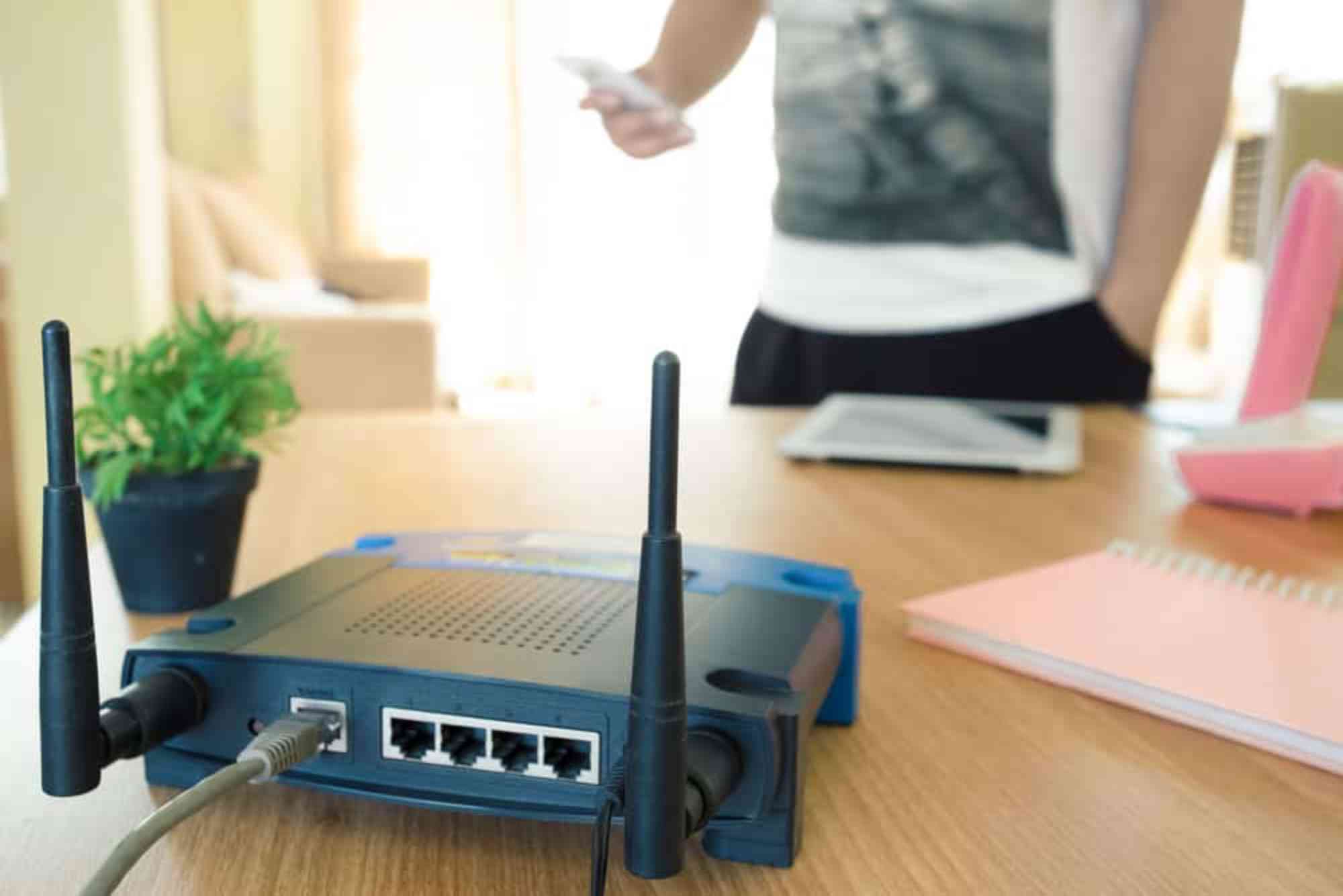
Plug the mesh router into your modem using the Ethernet cable. Power it on and wait for the indicator lights to stabilize. This establishes the foundation of your mesh network.
Download the Mesh Wi-Fi App
Most mesh systems, such as Google Nest Wi-Fi, Eero, or TP-Link Deco, require an app. Download the app on your smartphone from the App Store or Google Play. These apps guide you through the setup process step by step.
Add Additional Nodes
The beauty of mesh Wi-Fi is its scalability. Place additional nodes in areas where coverage is weak, such as upstairs bedrooms or basements. Plug them in, open the app, and follow the instructions to add each node to the network.
Optimize Node Placement
For the best results, nodes should be within range of each other. Avoid placing them behind large appliances, near microwaves, or too far apart. The app often provides feedback on whether a node’s location is optimal.
Configure Network Settings
Once all nodes are connected, you can customize your network settings. This includes setting your Wi-Fi name (SSID), password, parental controls, or guest networks. Some systems also allow device prioritization for smoother video calls or gaming.
Test Your Coverage
Walk around your home with your phone or laptop. Check if the signal remains strong in all rooms. If you notice a weak spot, reposition a nearby node.
Best Practices for Mesh Wi-Fi Setup
Setting up is only the first step. To maintain peak performance, keep these tips in mind:
-
Regularly update the firmware through the app.
-
Place nodes on shelves or tables, not the floor.
-
Keep them away from cordless phones and microwaves.
-
Add more nodes if your home expands or devices increase.
Common Problems and Fixes
Even with easy installation, some users face challenges. Here are common issues and solutions:
My Mesh Node Won’t Connect
Check that it’s within range of the main router. Restart both the router and the node.
Internet Speed is Still Slow
Ensure your modem supports your internet speed plan. Also, verify if too many devices are connected at once.
Wi-Fi Drops Frequently
Reposition nodes to eliminate obstructions and ensure overlapping coverage zones.
FAQs About How to Setup Mesh Wi-Fi System
Do I need to replace my modem?
No, you keep your modem. The mesh system connects to it and distributes Wi-Fi throughout your home.
How many nodes do I need?
Most homes do well with 2–3 nodes. Larger homes or multi-story buildings may require 4 or more.
Can I mix different brands of mesh Wi-Fi systems?
No, nodes from different brands typically do not work together. It’s best to use the same system.
Is mesh Wi-Fi better than range extenders?
Yes, mesh Wi-Fi provides seamless coverage and faster speeds, while range extenders often create weak secondary networks.
How long does setup take?
Most setups take 20–30 minutes. The apps are designed to guide you smoothly through the process.
External Resources
For further reading, you can explore guides from trusted sources like:
-
Google’s Nest Wi-Fi setup support
-
TP-Link Deco setup instructions
These resources provide brand-specific details that complement the steps above.
If you’re looking for reliable internet plans before installing a mesh system, check out Dhanote Internet Services for high-speed options.
Now you know how to setup mesh Wi-Fi system for whole home coverage. With just a few steps, you can eliminate dead zones and enjoy reliable connectivity everywhere. Whether you’re streaming, working, or gaming, mesh Wi-Fi ensures a seamless experience.
If you’re ready to upgrade your internet, start by choosing the right mesh system today. Don’t wait—say goodbye to buffering and hello to whole-home coverage.